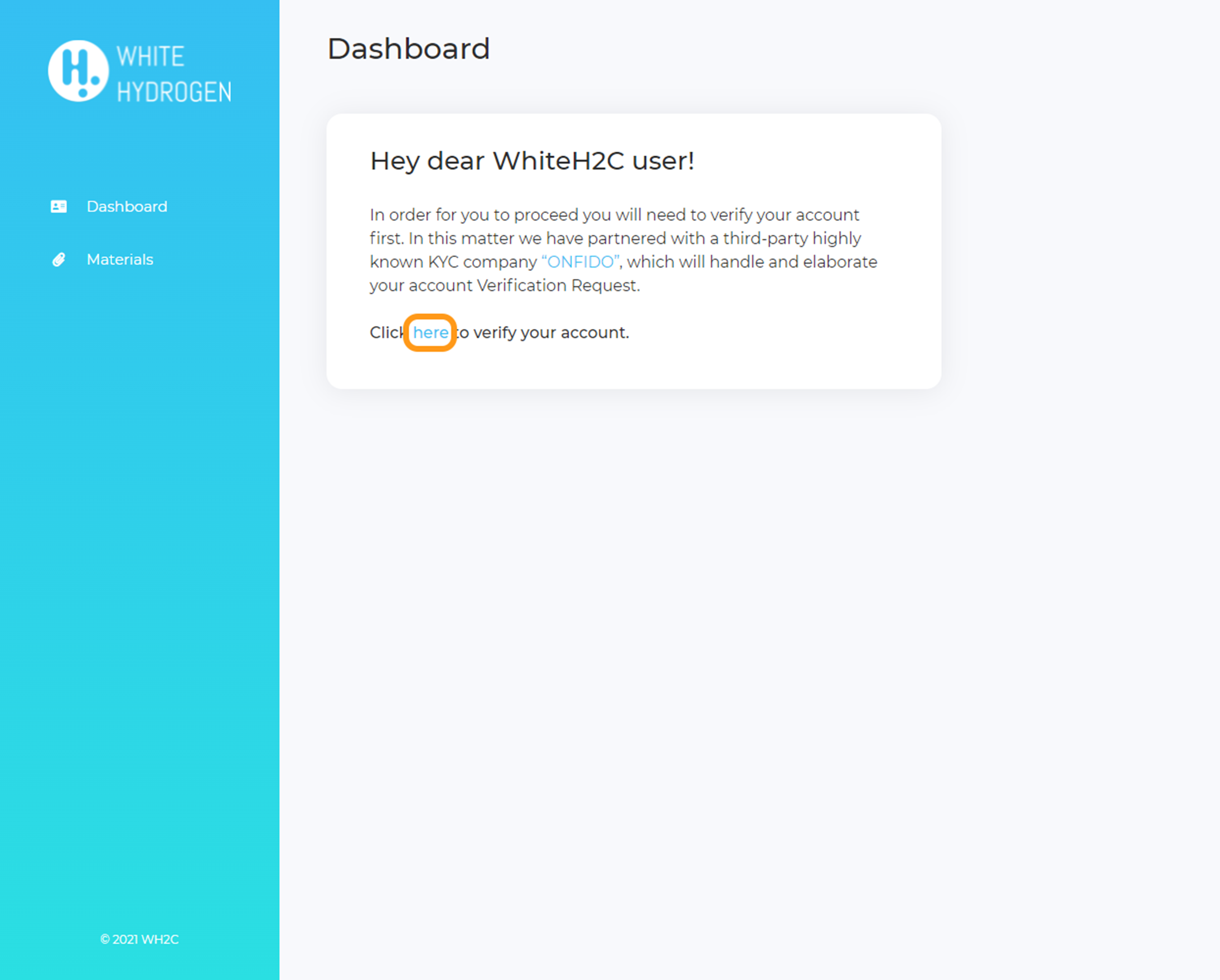
1. You have successfully completed the first step of registration.
You must verify your account to continue. To do this, click here.
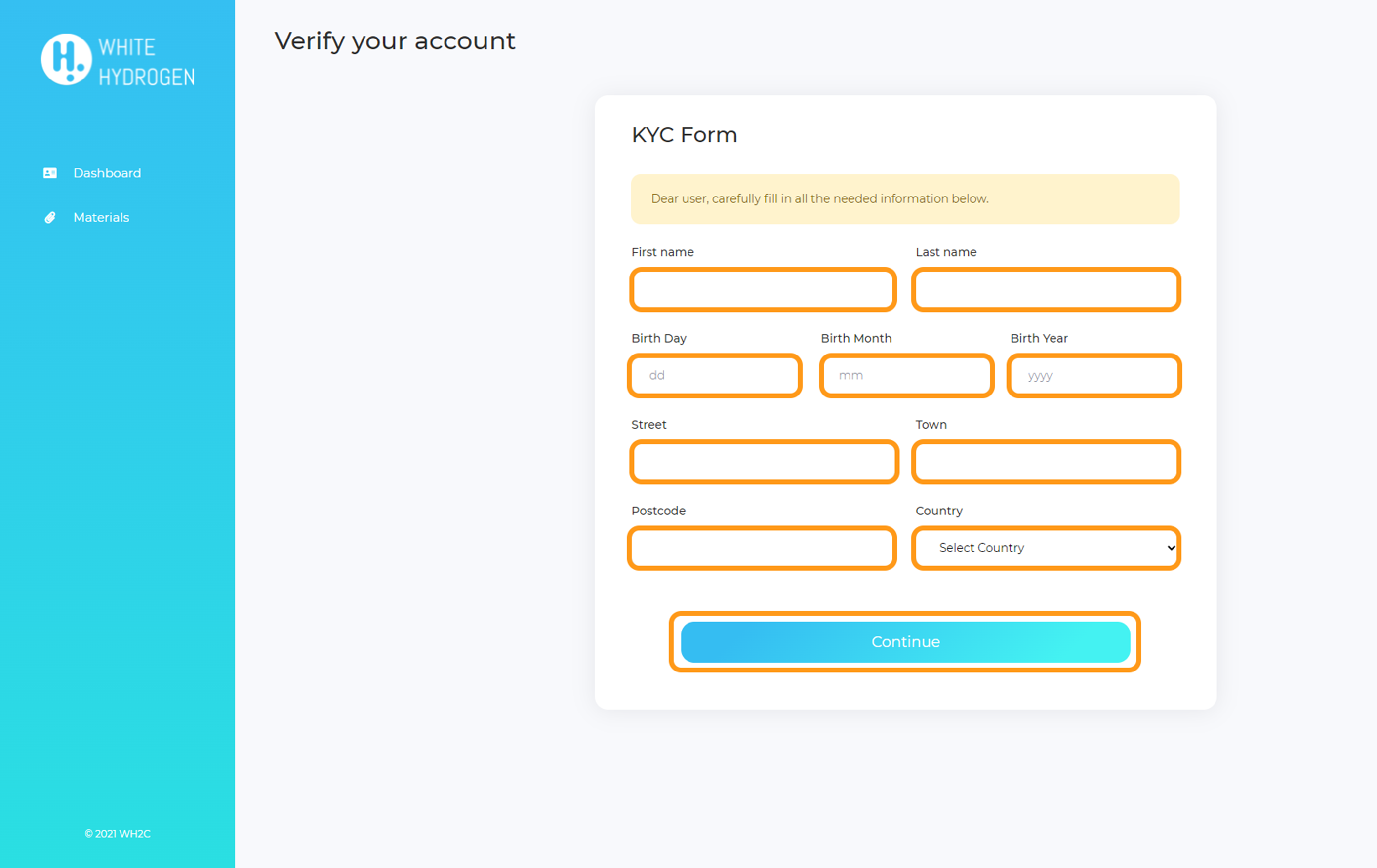
2. Fill in all the required information and click Continue.
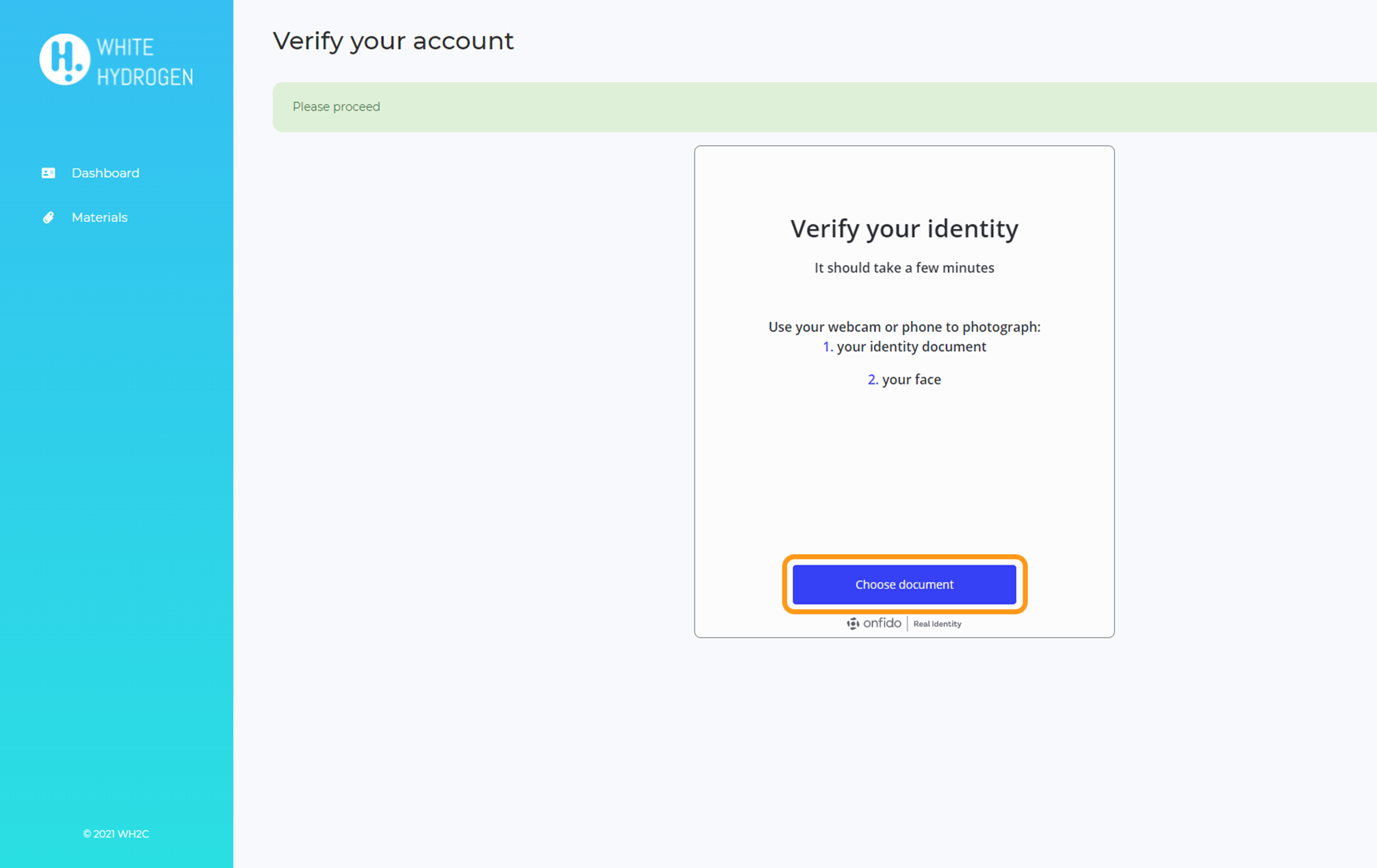
3. Select Choose document.
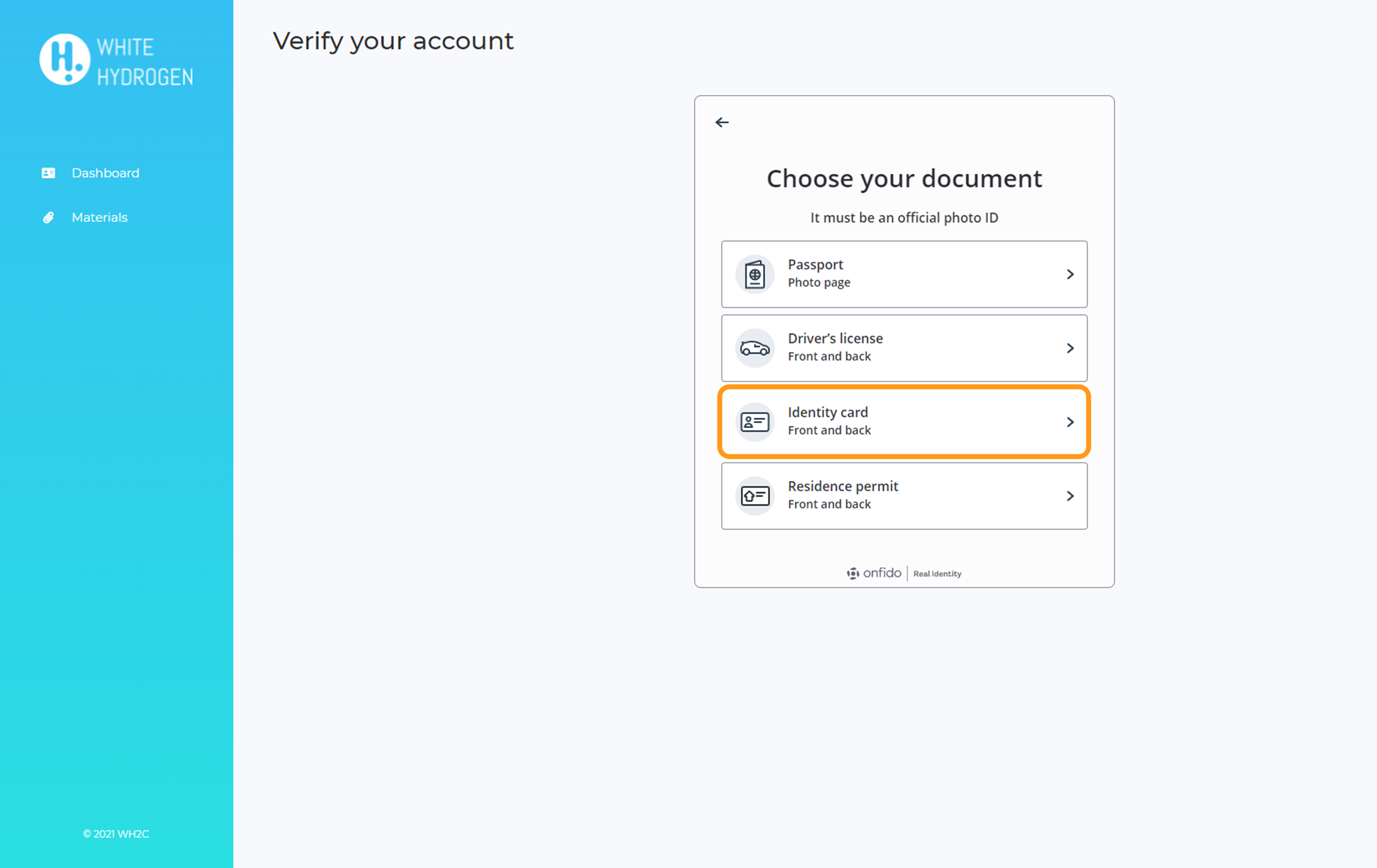
4. Select the document with which you want to perform the verification, e.g. Identity card.
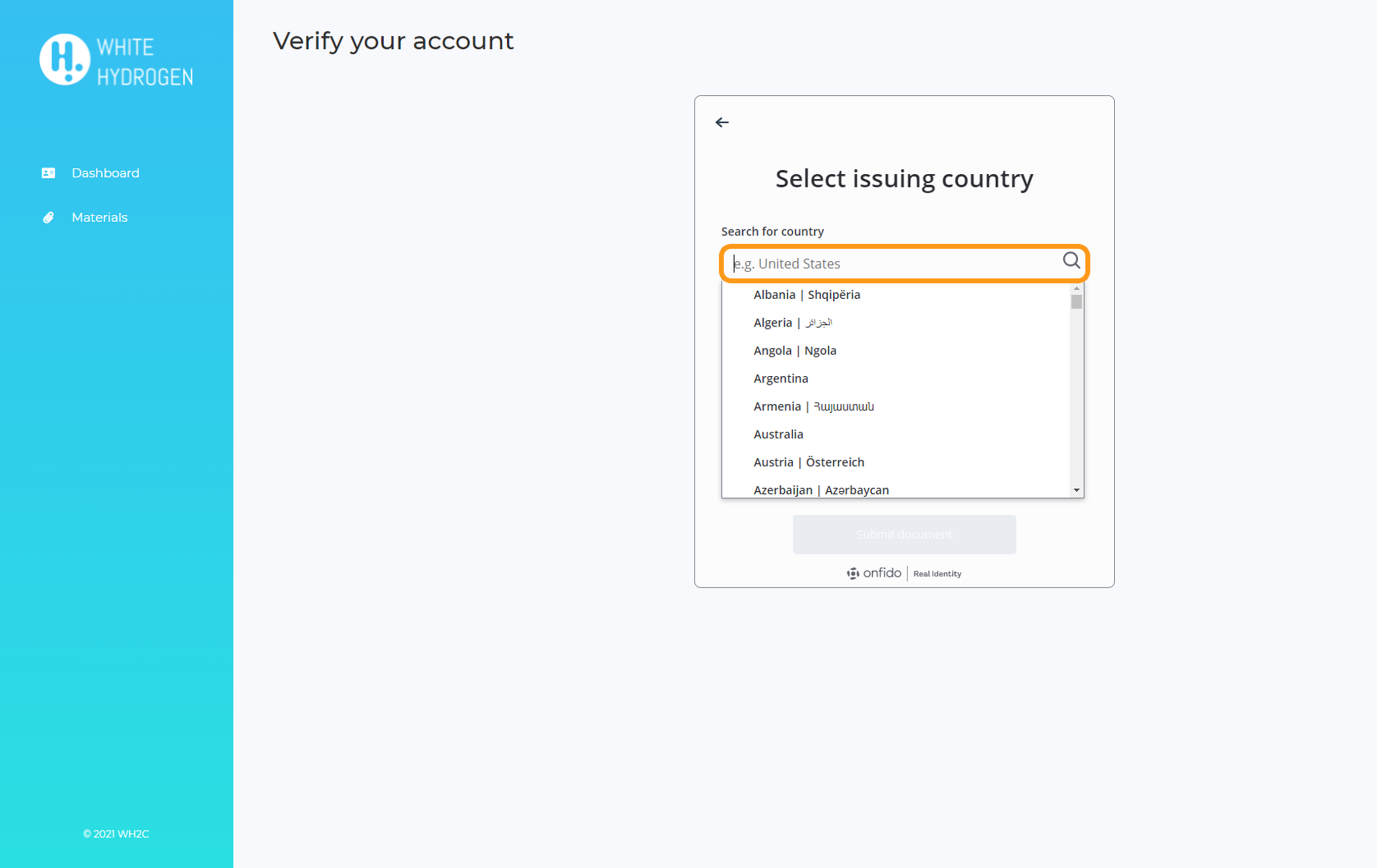
5. Select your country.
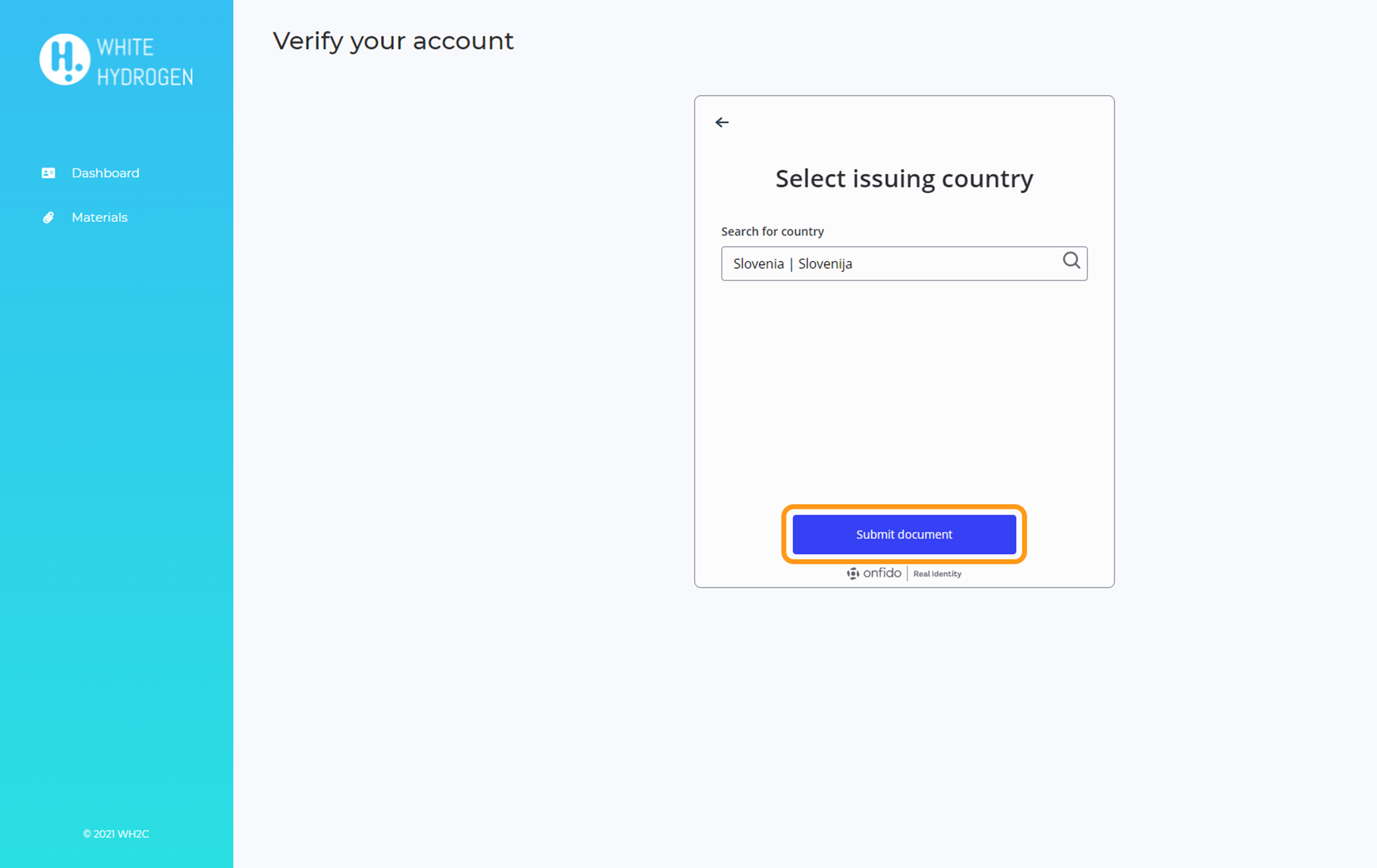
6. Click Submit document.
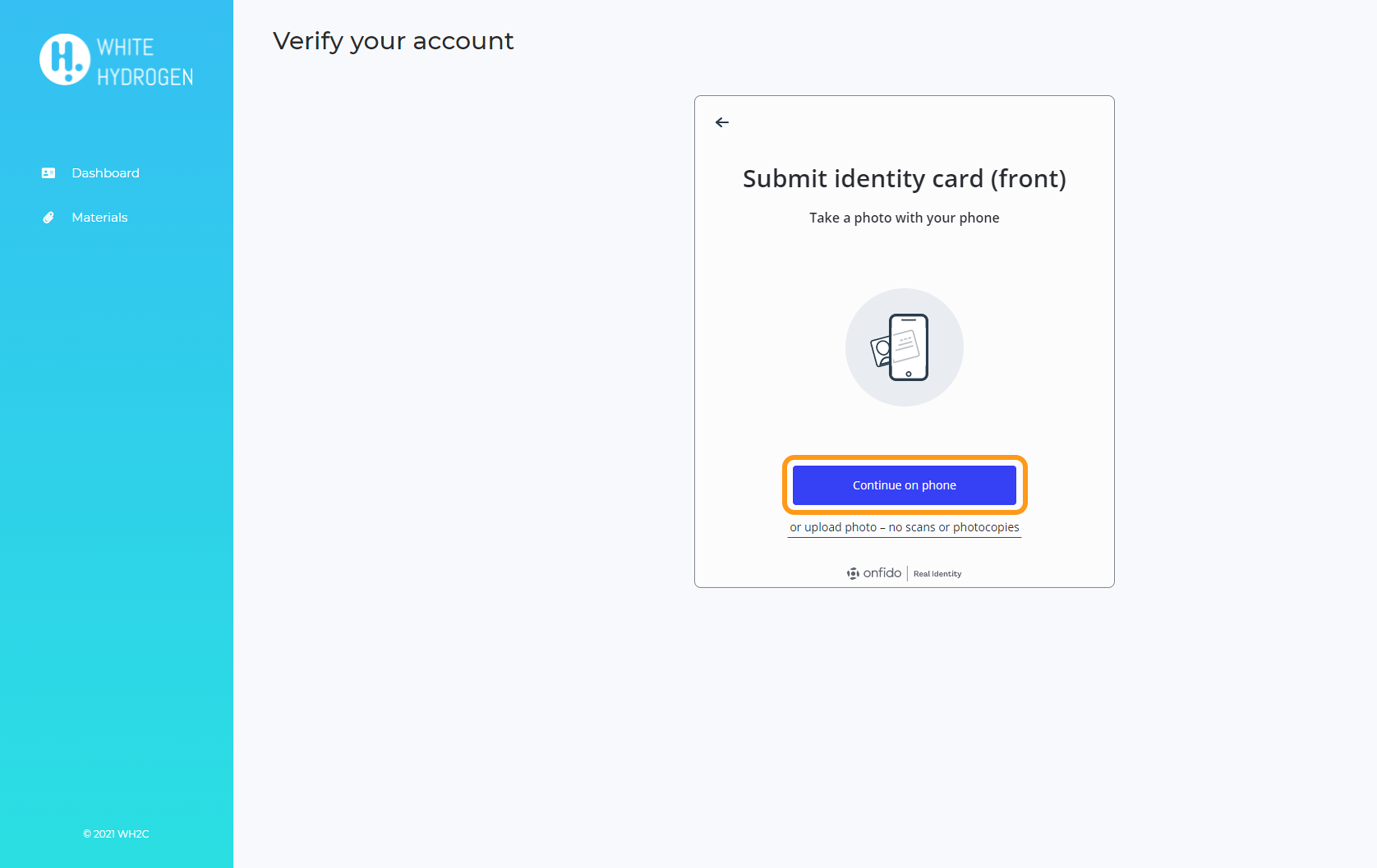
7. Select Continue on phone.
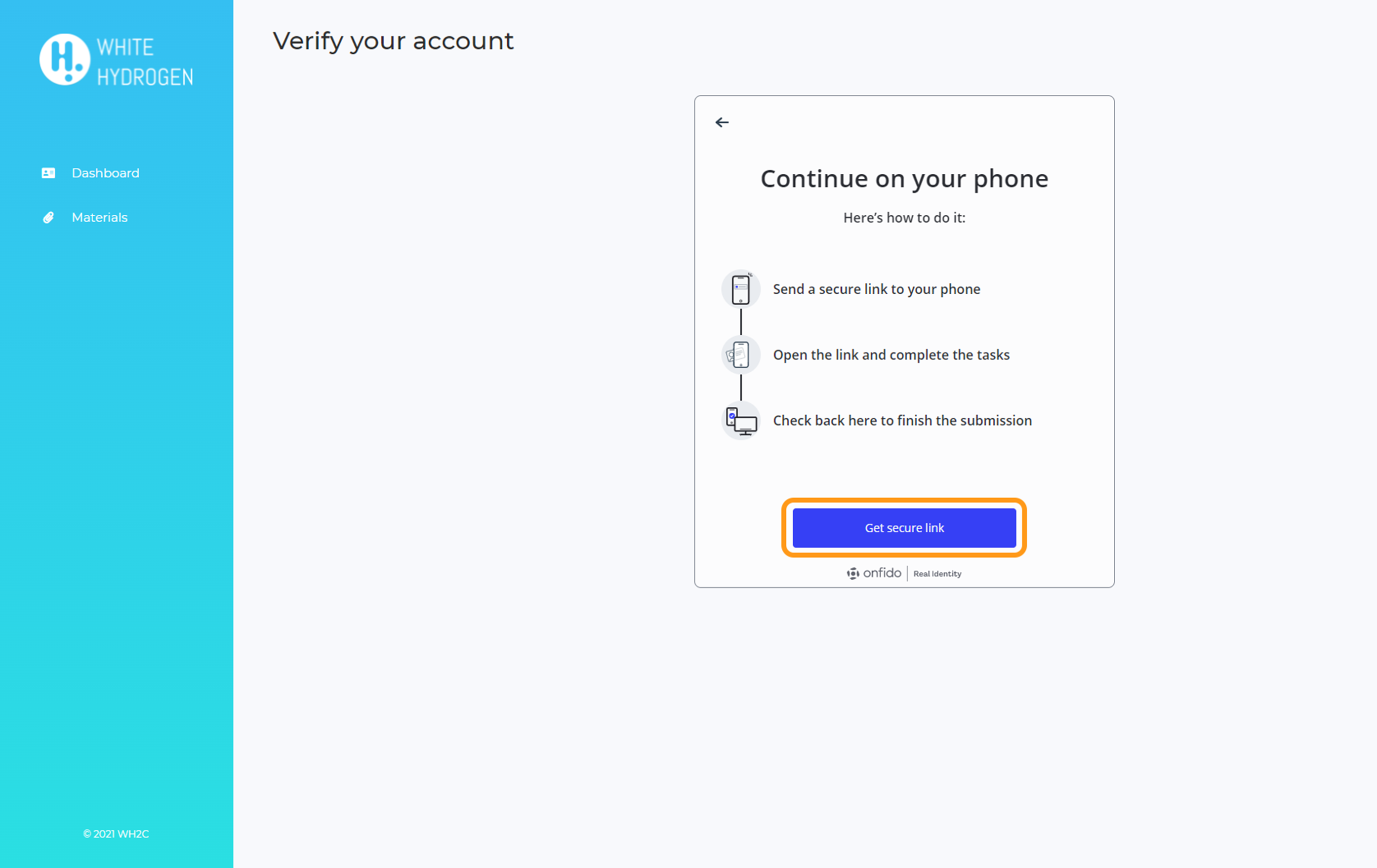
8. Select Get secure link.
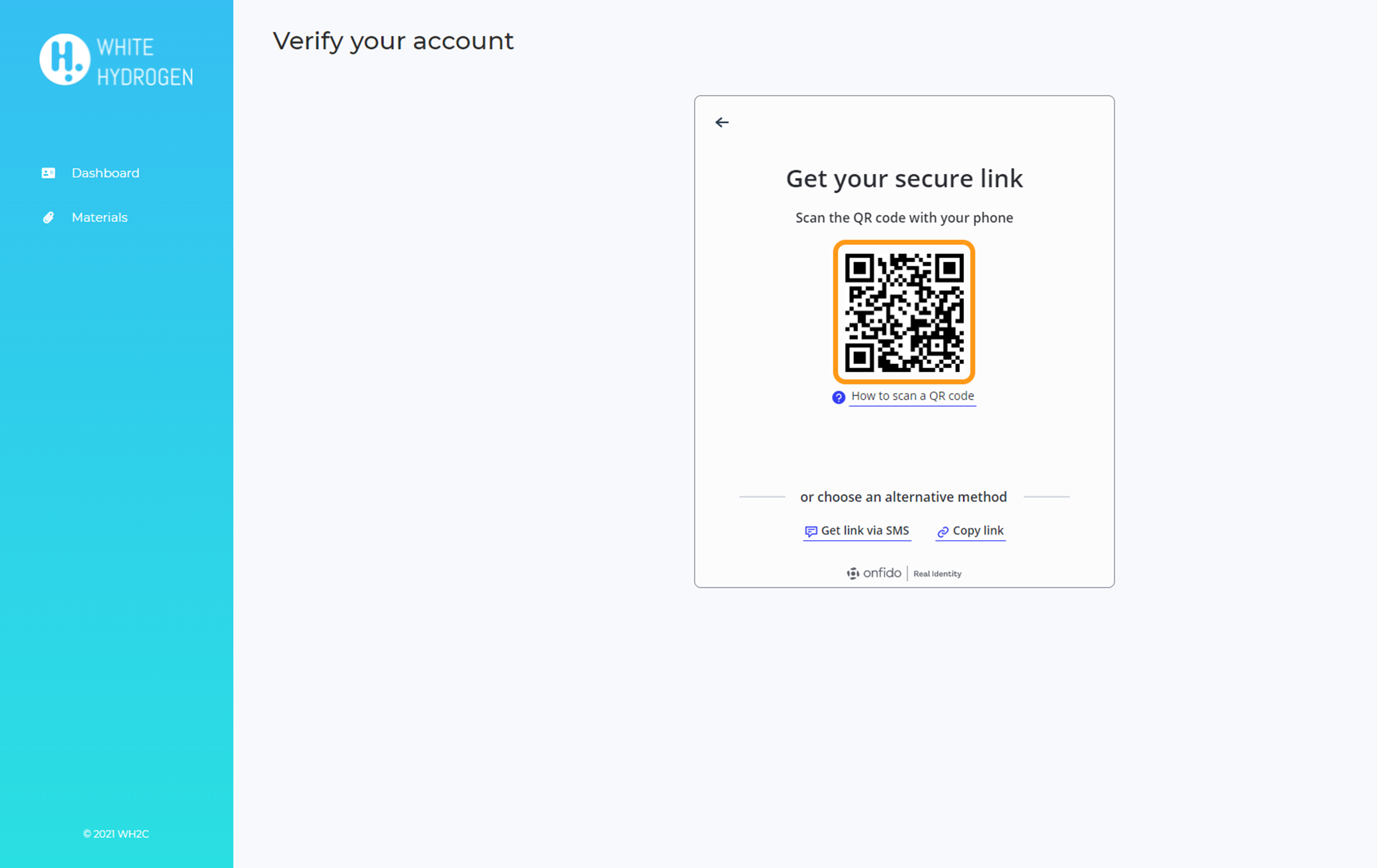
9. Scan the QR code with your phone or choose an alternative method.
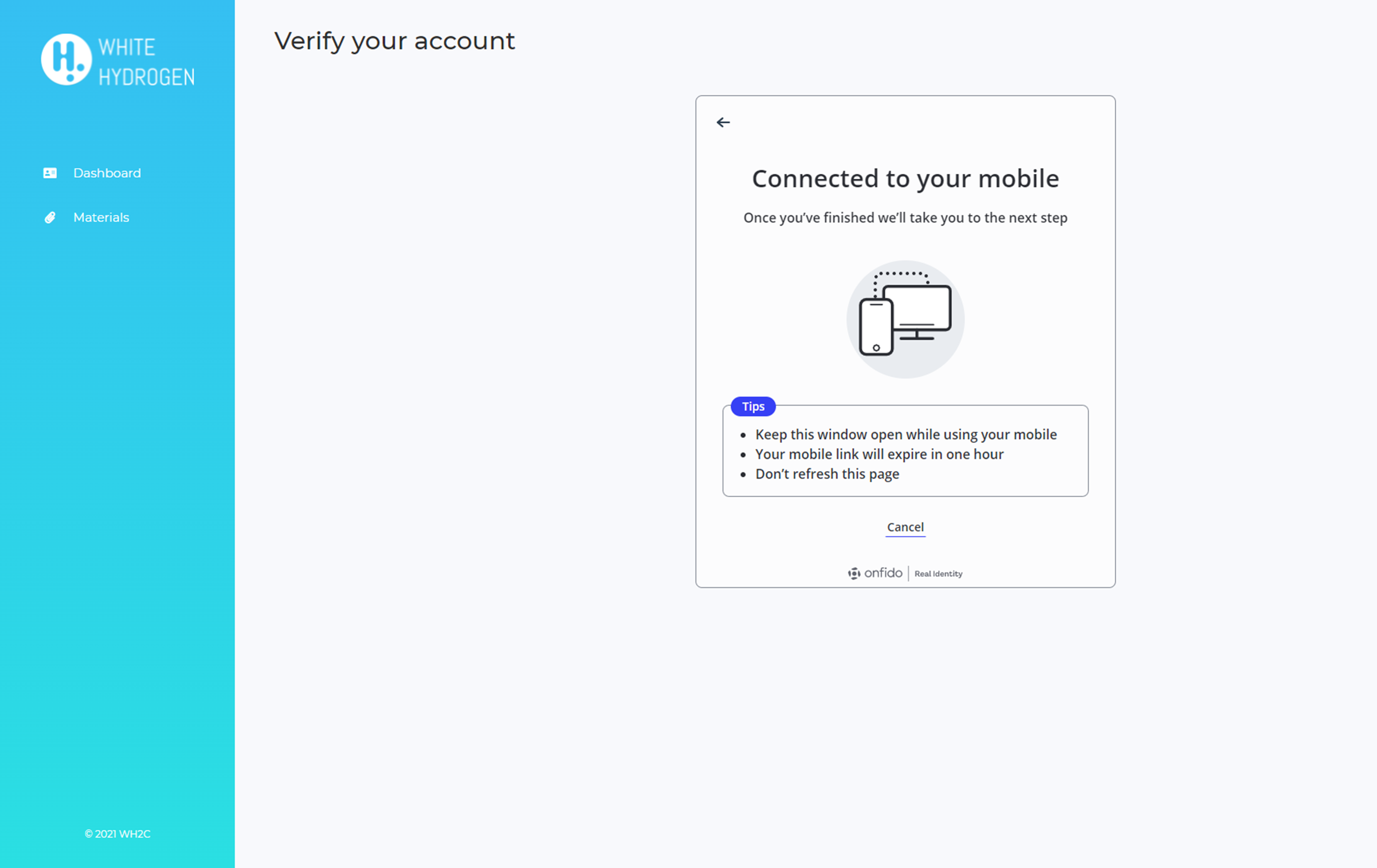
10. It redirected you to your mobile device. Do not close the window.
Continue the process on your mobile device.
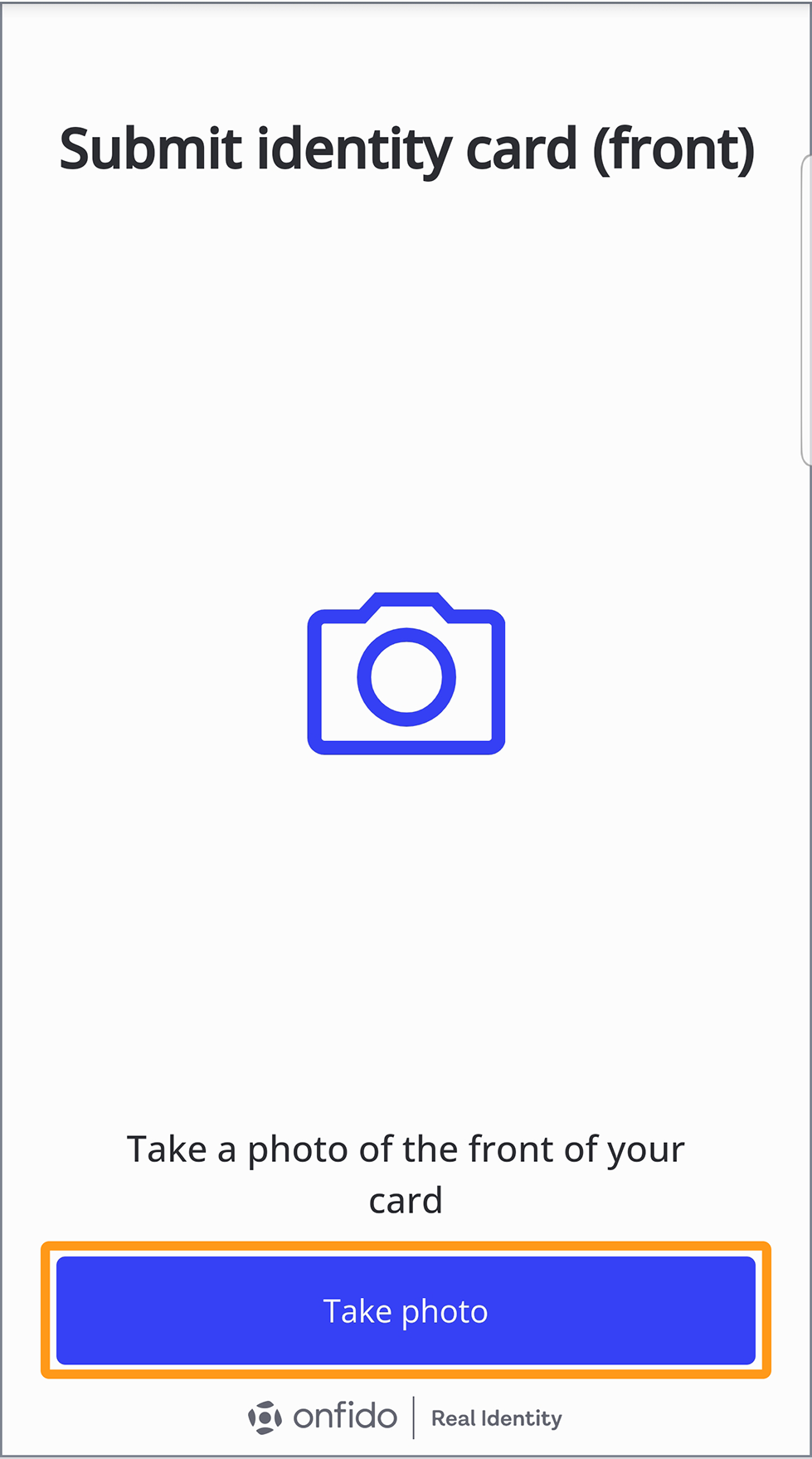
11. On your mobile device click Take photo. Take a photo of the front of your document and then upload the photo by clicking on Upload.
Repeat the process, photographing the back of the personal document (for some documents, double-sided photography is not required).
Be careful the document number must be clear on the photograph.
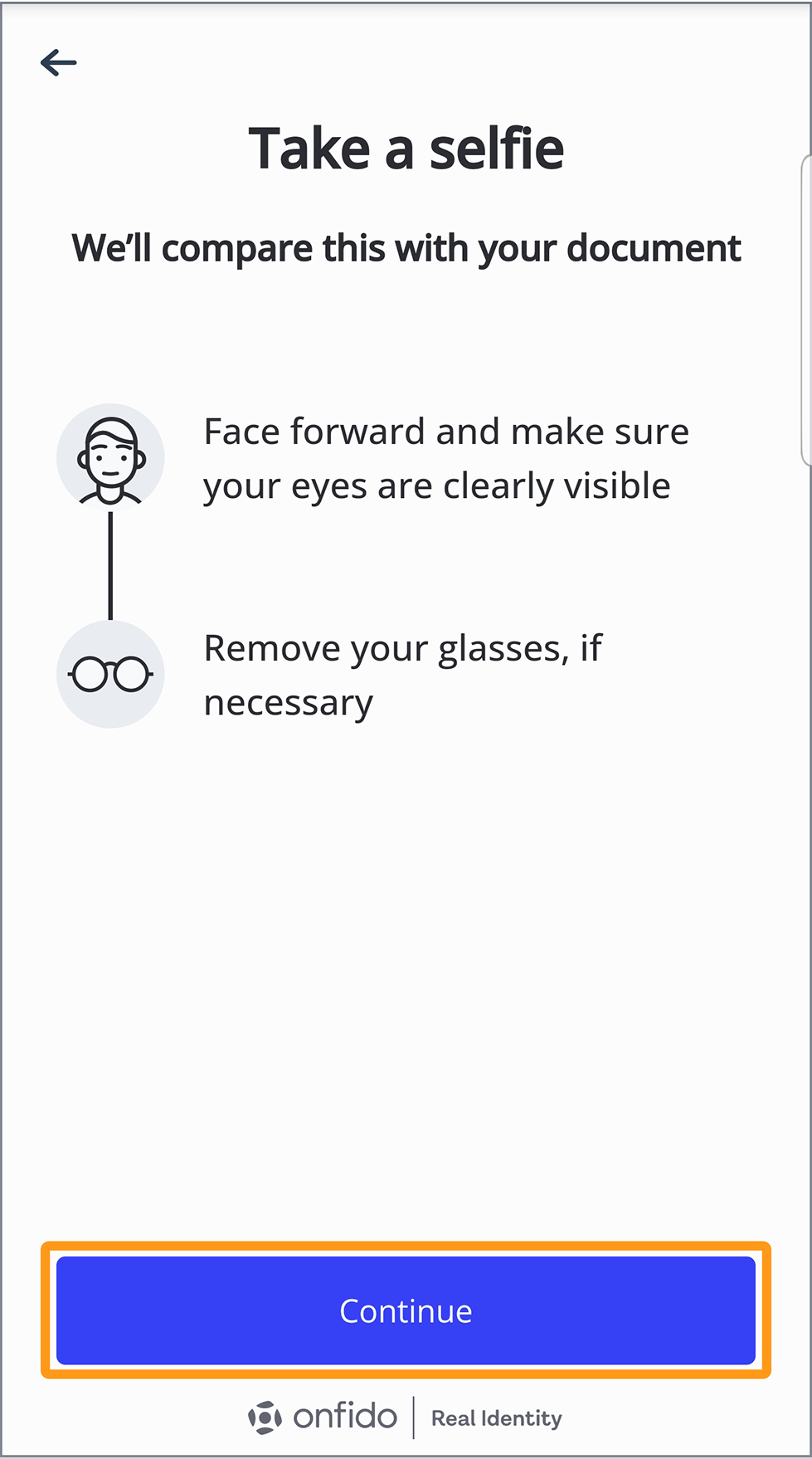
12. Click Continue.
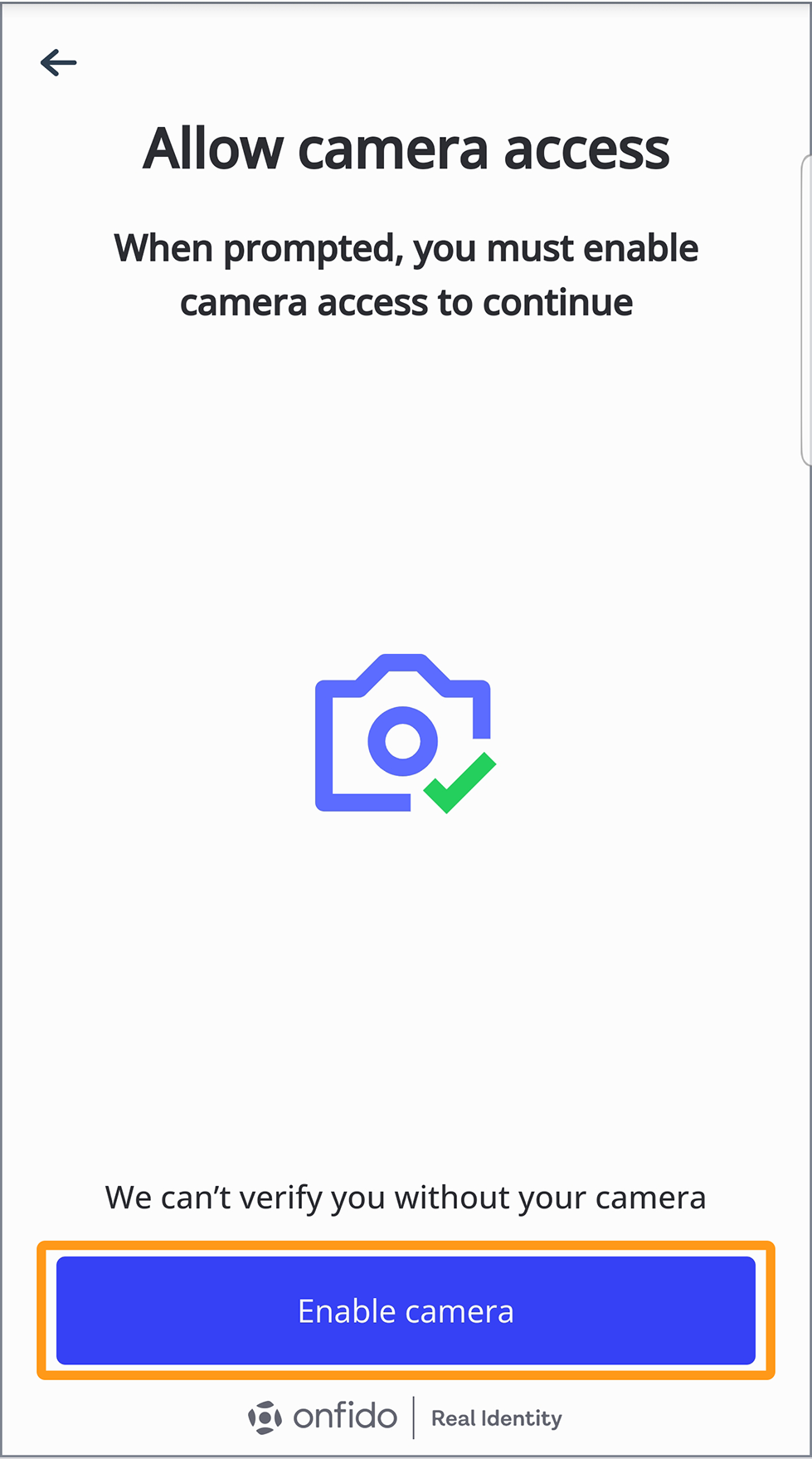
13. Select Enable camera, to allow the application to access your camera. Only then you will be able to proceed with the verification process.
Take a photo so that your face is completely inside the oval. Upload a photo by clicking Upload.
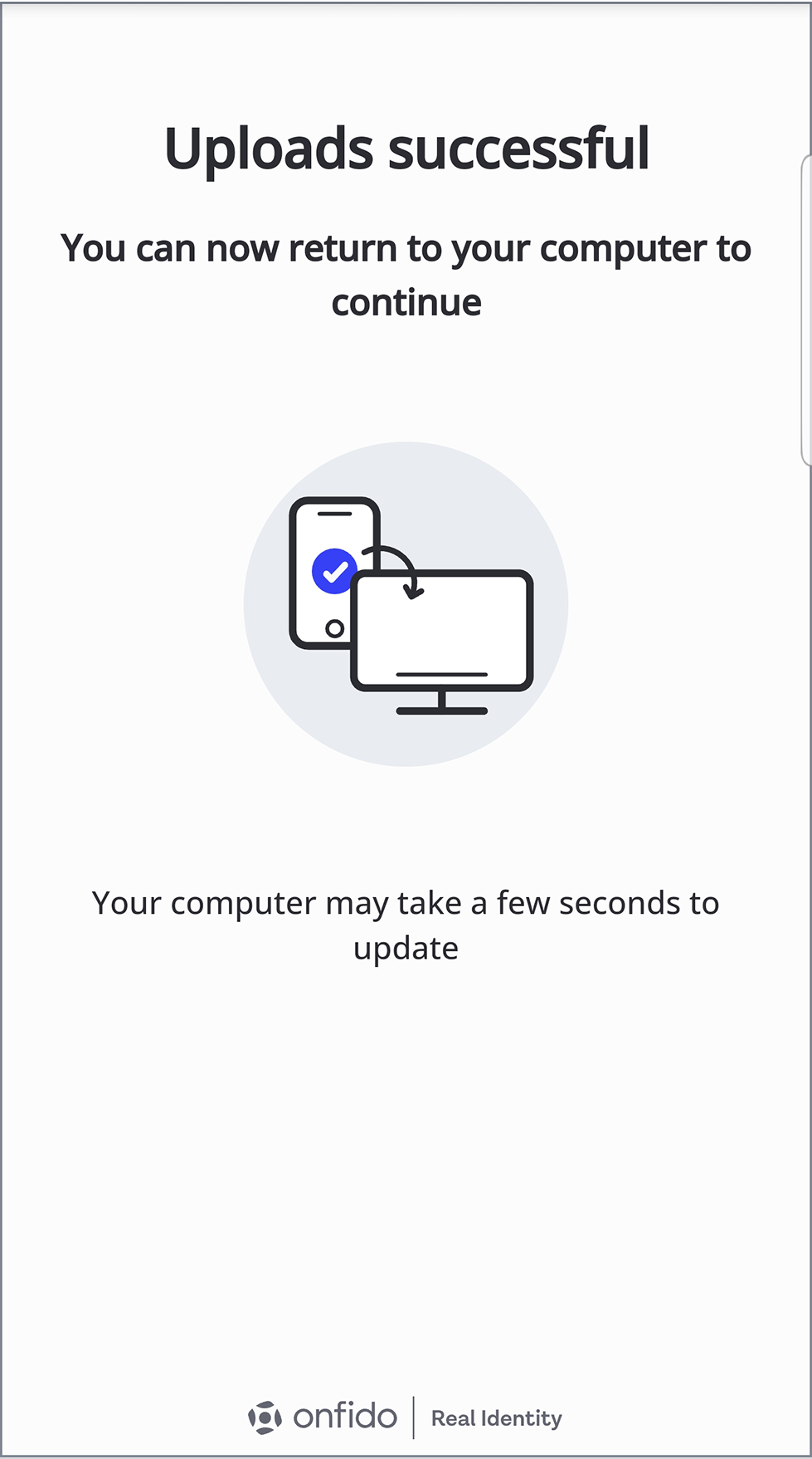
14. You can now return to your computer and continue with the process.
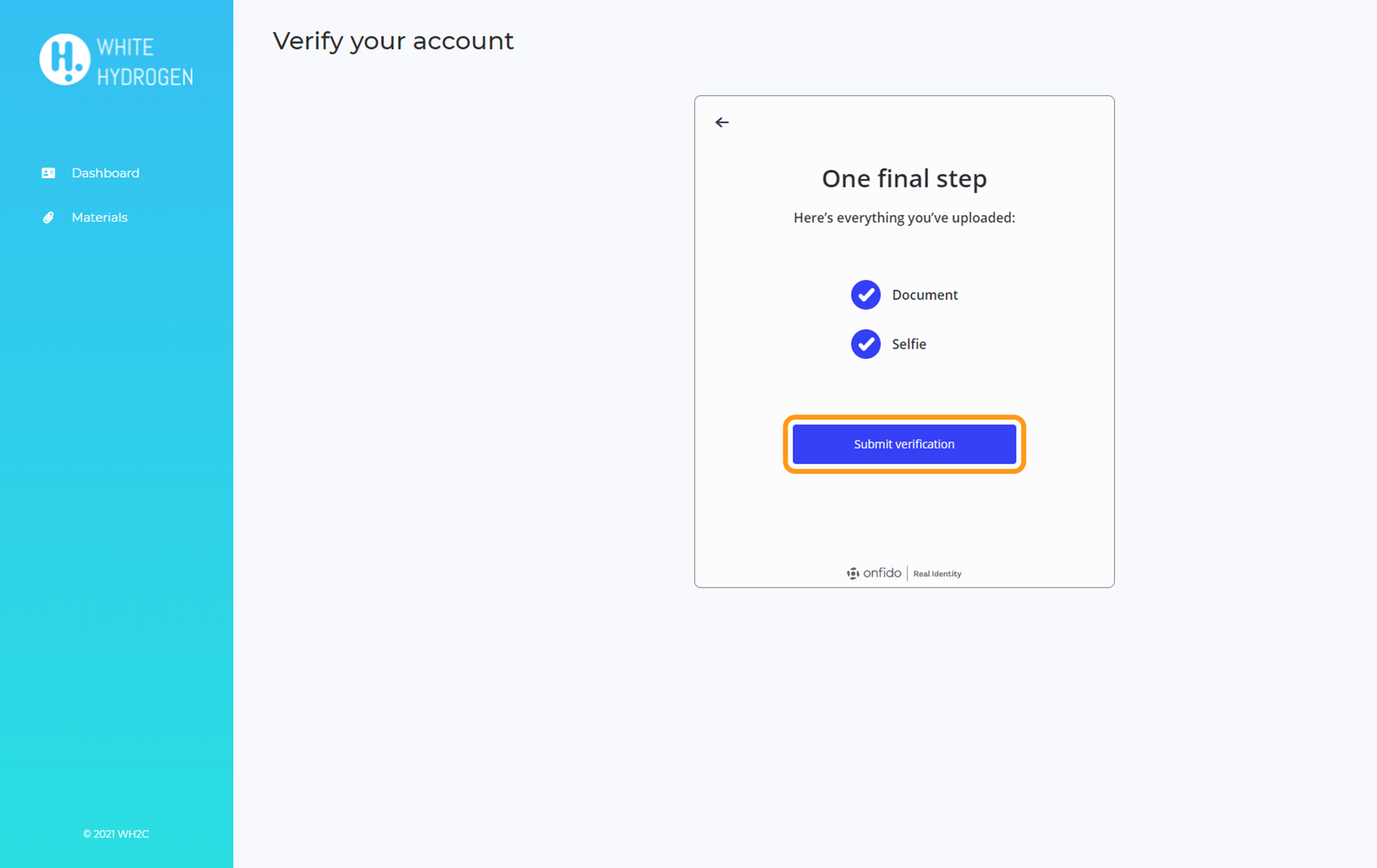
15. Confirm by clicking Submit verification.
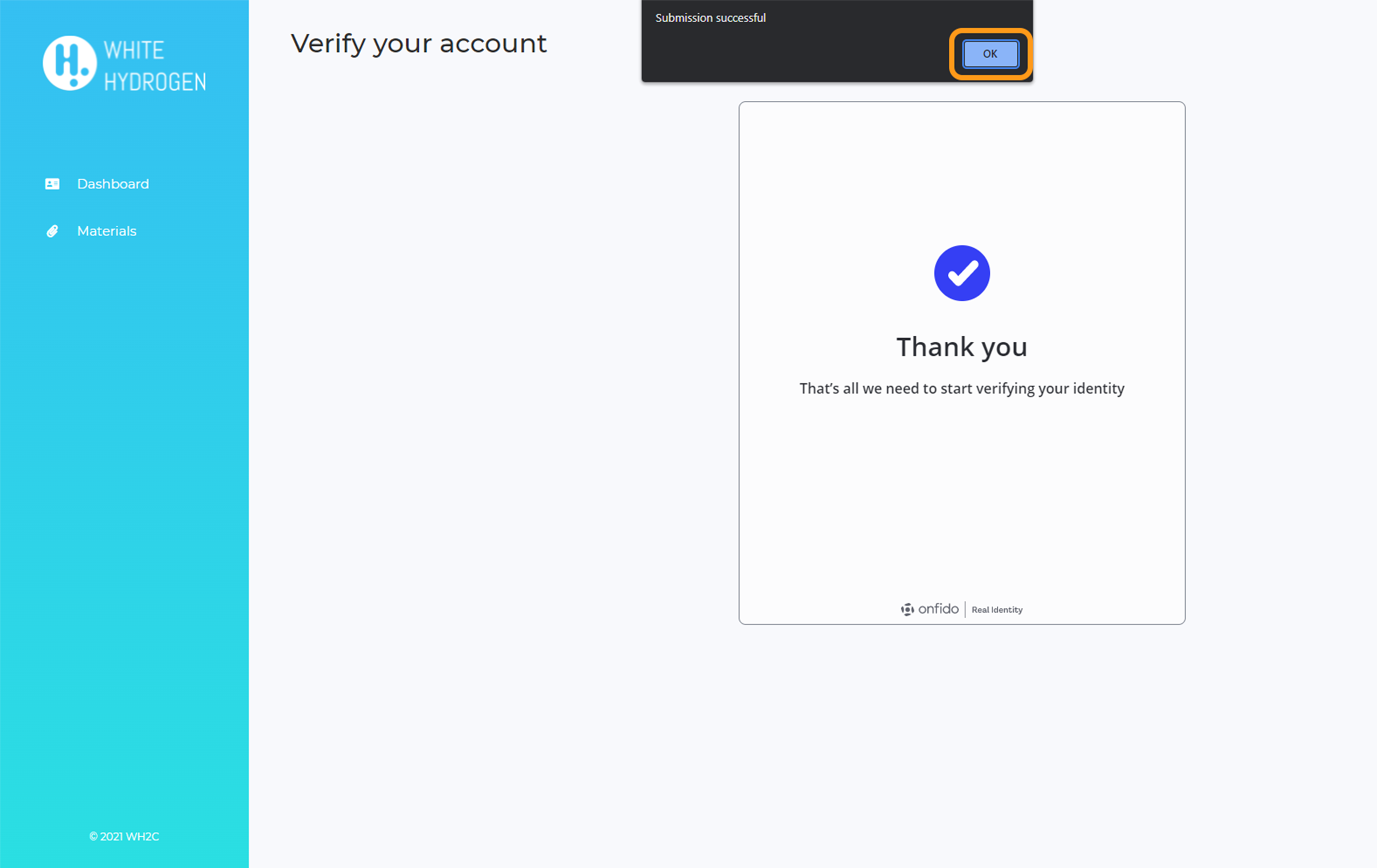
16. Click OK.

17. You have completed the registration process.
Please wait while we process your data.
